

Convert a bank statement PDF to Excel or CSV and get a checked bookkeeping file
Your bookkeeping file needs transaction rows, but the bank statement arrived as a PDF. Converting a bank statement PDF to Excel is only the first step: dates, debit and credit signs, repeated headers and running balances still need checking before you use the spreadsheet.
Start with the bank's own CSV or spreadsheet export if it is available. When the PDF is the only useful source, preserve the original and convert it into rows you can compare back to the statement. The result should be a checked CSV or XLSX file, not a table that merely looks tidy.
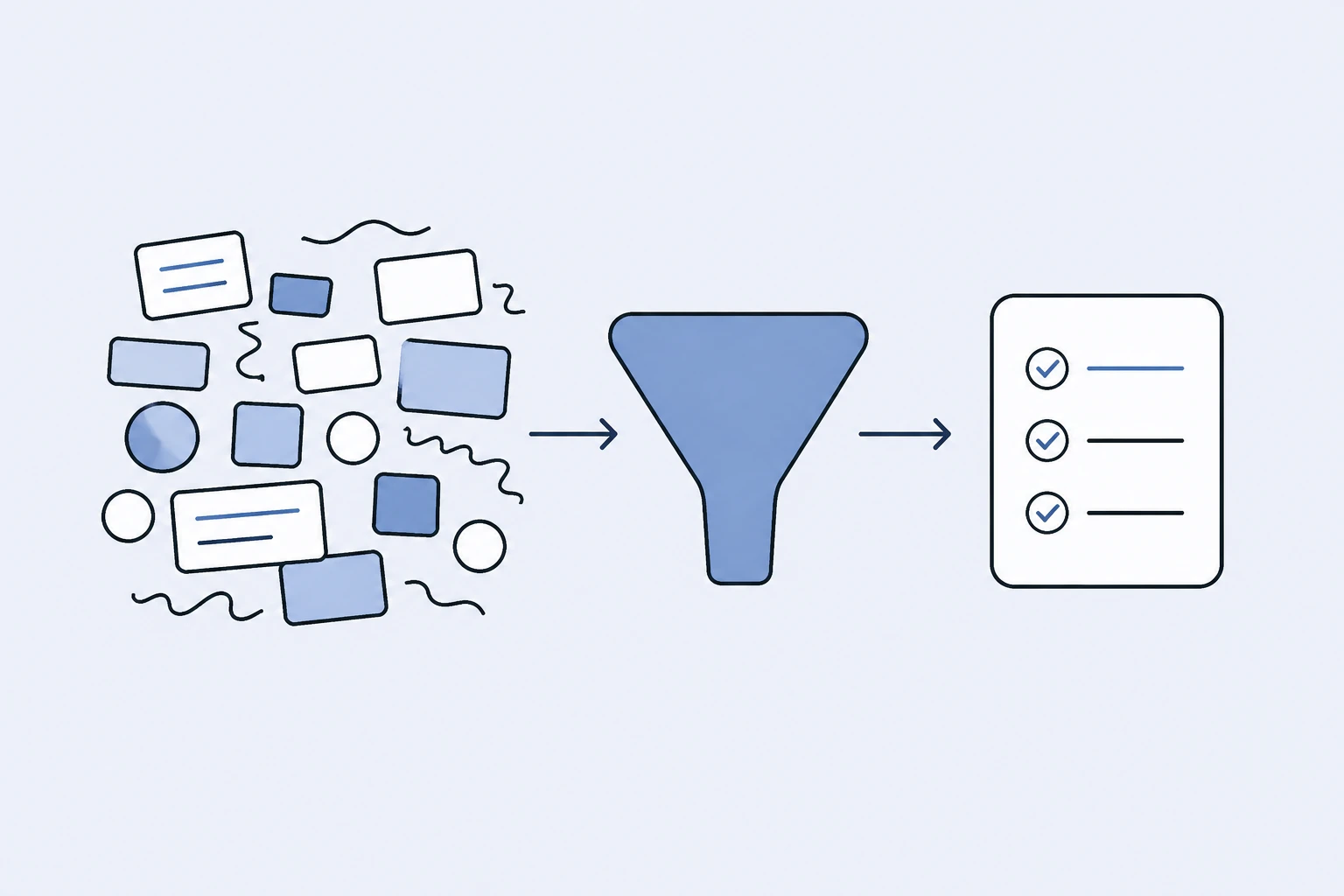
Reproduce the conversion example
Five transactions were extracted. An opening balance of €1,000, debits of €225 and credits of €700 give a closing balance of €1,475. The transfer has no reference; the result leaves that field empty.
The transfer was marked medium confidence. Compare it with the source before using the export. This example is one sample, not an accuracy guarantee.
Sample run: 26 September 2026. Source files and downloaded results are in English.
Choose the source before choosing the converter
A statement downloaded directly from the bank usually gives you a clearer starting point than a photograph or a scan of a printout. Check that all pages are present and that the date range covers the work you need to do.
If the bank offers a CSV export, compare its scope with the statement. An export may use booking dates, value dates or a different period. Confirm that it represents the transactions you need rather than assuming the two files are interchangeable.
For a PDF, check whether the text is selectable. A scanned image may need OCR, while a text-based PDF may contain extractable tables. In either case, review the output: a clean source reduces ambiguity but does not prove every field was captured correctly.
Compare available conversion approaches
For a small, regular table, Excel's PDF import may be sufficient. Microsoft's Power Query import guidance describes supported data sources and PDF import; availability depends on the Excel environment and required components.
A dedicated statement converter can be useful when you need transaction fields and source-aware review rather than a generic table extraction. Choose based on whether you can inspect uncertain values and trace them back to the statement.
Manual entry remains an option for a very short statement. If you use it, apply the same checks for missing rows, signs and balances. The need to verify the result does not disappear because a person typed it.
Prepare a readable statement
Keep the account identifier, statement dates, opening balance and closing balance available for review. Avoid cropping away page numbers or column labels, because those can explain how a row should be interpreted.
If a PDF is password protected, use an authorized unlocked export through your bank or normal document process. Do not upload credentials. For a scan, use readable pages in the correct order without glare, folded edges or missing amounts.
Arthur & Co's free converter accepts one supported statement file up to 15 MB, with PDFs up to 10 pages. The Bank Statement Converter workflow page lists current formats and paid batch limits, so check it before preparing a larger pack.
Check a transaction row against the source
Use the description, date, amount and balance together. A wrapped description may occupy two printed lines but represent one transaction. A page header may look like a row without being part of the account activity.
Here is a fictional example using a signed amount convention:
| Date | Description | Amount | Running balance |
|---|---|---|---|
| Opening | Balance brought forward | — | €1,000 |
| 2 September | Supplier payment | −€120 | €880 |
| 3 September | Customer receipt | €300 | €1,180 |
| 4 September | Bank charge | −€5 | €1,175 |
The overall check is €1,000 − €120 + €300 − €5 = €1,175. If the supplier payment is imported as positive, the closing balance will be wrong even though every digit in the amount was recognized.
Compare the same row with the original statement. If your bank uses separate debit and credit columns, preserve that interpretation rather than applying a signed convention without checking it.
Review dates, decimals and currency
A date such as 03/04 can mean different things in different locales. Use the statement's context to establish the date convention, then make sure the spreadsheet imports it correctly. Keep booking date and value date separate when both appear.
Decimal separators and thousands separators need the same care. The strings “1,250.50” and “1.250,50” can represent the same amount, but the receiving spreadsheet may interpret them differently.
Keep the currency with the data. Do not combine amounts from different currencies into a single total without an explicit conversion process. Statement conversion extracts what is present; it is not an exchange-rate or accounting policy decision.
Look for missing rows and duplicate headers
Compare the first and last transaction on each page. Repeated headers, carried-forward balances and continued descriptions are common places where a table can gain or lose rows.
If the closing balance does not reconcile to the opening balance and transactions, inspect the source before adjusting the output. A missing bank charge, duplicated receipt or reversed sign can explain the difference. Changing a number merely to reach the expected balance hides the underlying issue.
Arthur & Co's converter exposes review flags and balance inconsistencies for checking. A flag is a prompt to inspect the source, not proof that the bank's statement is incorrect. Conversely, a balancing result does not guarantee that two offsetting errors are absent.
Choose CSV or XLSX for the next step
CSV is useful for systems that expect plain rows and columns. Confirm delimiter, encoding, date format and decimal interpretation when importing it. Open a sample in the receiving application before sending the entire file onward.
XLSX is convenient when a reviewer will work in Excel. Check that amounts are numeric and dates behave as intended. A cell that looks like a number may still be stored as text and fail in a formula or filter.
Keep the original export before making corrections. Record the source and reason for any changed value so someone else can understand the final spreadsheet. The free result supports review and download; paid use adds editing, saved history and recurring batches.
Keep conversion separate from reconciliation
The converter turns statement data into transaction rows. It does not post entries, categorize spending or reconcile those transactions with your books. Those are separate tasks with additional records and decisions.
If you also need to prepare employee expense documents, the receipt-to-spreadsheet guide explains a different extraction job. A receipt's merchant, tax and total are not a substitute for the bank transaction, even when both relate to the same purchase.
Finish with a checkable spreadsheet
Before using the file, confirm the account, date range and currency; inspect uncertain rows; check opening-to-closing arithmetic; and test the chosen export in its destination. Retain the source statement with the reviewed result.