

How to extract receipt data to Excel for accurate expense review
Employee receipts have arrived as PDFs, phone photos and forwarded images. Before the expense review, someone needs to turn them into consistent rows and identify missing values. To extract receipt data to Excel, capture the fields shown on each receipt, check them against the image and keep uncertain values visible.
The useful result is a spreadsheet of merchant, date, currency, tax and total with enough source context to review the expense. A row that looks complete is not helpful if a missing tax amount or unclear date has been guessed.
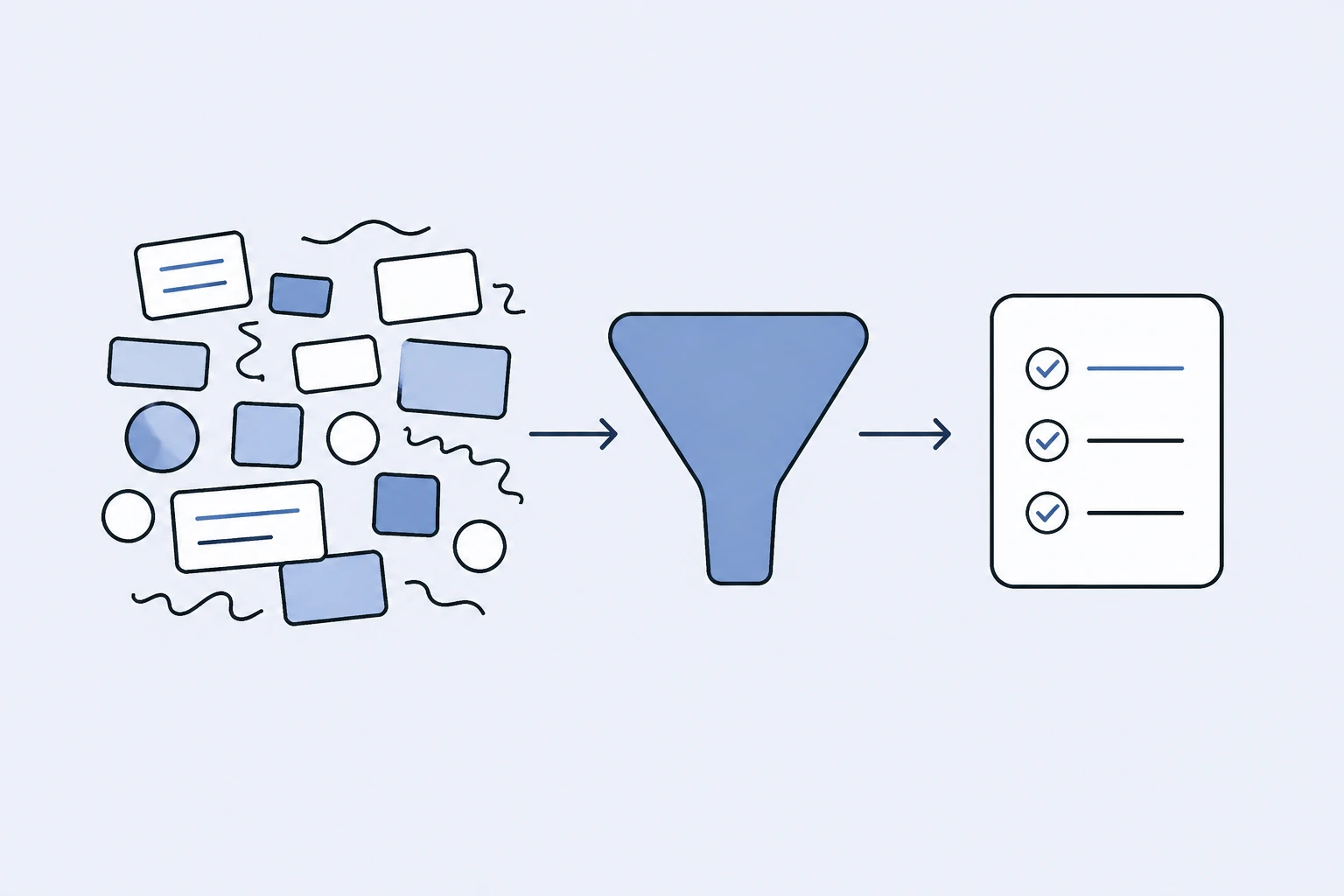
Decide which fields the reviewer actually needs
Start with the expense-review process. The receipt can supply transaction details, but the reviewer may also need a business purpose, employee name or project reference that is not printed on it. Keep those additional fields separate from extracted source data.
| Field | What to capture | What to check |
|---|---|---|
| Merchant | Name shown on the receipt | Trading name versus payment processor |
| Date | Receipt or transaction date | Locale and ambiguous day/month order |
| Currency | Printed currency or clear source context | Do not infer solely from the employee's location |
| Before-tax amount | Amount explicitly shown | Discounts or multiple tax rates |
| Tax | Printed tax amount where available | Missing is not the same as zero |
| Total | Final amount on the receipt | Tip, discount and rounding treatment |
| Source reference | File or receipt identifier | Can the reviewer find the original? |
This structure helps the reviewer distinguish the purchase from the interpretation of it. An expense category can be useful, but it should remain reviewable rather than being treated as proof of accounting treatment.
Prepare the receipt before extraction
Photograph the whole receipt on a contrasting surface, with readable text and no glare. Include the merchant header and final total. A cropped amount without a date or merchant may not provide enough context for the expense review.
Use one clear source for each receipt. If the same purchase appears in an email attachment and a phone photo, retain the relationship instead of assuming they represent two expenses. Similar amounts on different dates, however, may be separate purchases.
Arthur & Co accepts receipt PDFs and supported image formats including JPG, PNG, HEIC and HEIF. The free entry takes one file up to 15 MB. The receipt data extraction workflow explains current inputs, paid editing and batches of up to 50 receipt files.
A worked receipt-to-spreadsheet example
The following figures are fictional. A receipt from Sample Supplies shows €100 before tax, €20 tax and €120 total. The extracted row should preserve those values separately:
| Merchant | Date | Currency | Before tax | Tax | Total |
|---|---|---|---|---|---|
| Sample Supplies | 2 September 2026 | EUR | 100.00 | 20.00 | 120.00 |
Check the arithmetic: €100 + €20 = €120. Then compare each field with the receipt. Arithmetic agreement alone cannot confirm the merchant or date, and a correctly adding row can still contain two offsetting extraction errors.
If the receipt shows only a total, do not manufacture a tax amount to fill the column. Mark the value as unavailable and follow your expense process for the missing detail. This example explains data checking, not a tax-deductibility rule.
Handle missing and uncertain values explicitly
Keep “not shown,” “unreadable” and “zero” distinct. A zero tax value states something different from an empty field where the source cannot be read. Your spreadsheet should not make those states look identical to the reviewer.
For an ambiguous date, inspect the merchant location, surrounding text and other dates on the receipt. If it remains unclear, ask for a better image or confirmation instead of silently choosing a format.
If the currency is uncertain, retain the original symbol or source wording and flag the field. A dollar symbol alone may not establish the currency needed for the expense record.
A useful extraction result reduces transcription while exposing these questions. It should not turn gaps in the source into confident-looking data.
Check totals, tips and discounts
A receipt may contain a subtotal, a tax total, a tip and a final amount. Capture the final amount in the appropriate field while retaining any additional amounts needed by the reviewer. Avoid treating every prominent number as a separate expense.
Discounts and mixed tax rates can make a simple subtotal-plus-tax check incomplete. Read the whole receipt before concluding that the extracted total is wrong. Keep the source calculation visible rather than changing a field to match an expected percentage.
Foreign-currency expenses add another step. The receipt amount and the amount charged by a card provider may differ because they represent different currencies or charges. Receipt extraction does not determine the exchange-rate policy your organization should apply.
Review repeated purchases and duplicate files
Two copies of the same receipt should not become two reimbursement requests. Compare merchant, date, total and receipt number where available, then inspect the original documents.
Do not assume equal totals prove duplication. A daily parking ticket or recurring meal purchase can legitimately repeat an amount. The reviewer needs enough context to distinguish repeated files from repeated transactions.
Keep the original receipt linked or identifiable in the review pack. If a colleague questions a row later, they should be able to locate the source without searching an inbox again. This is a review practice, not a claim that every duplicate is automatically detected by the extraction workflow.
Export rows in a format the next process can use
Choose CSV when the receiving process expects plain tabular data. Check delimiter, decimal separator, date format and encoding when importing it. Use XLSX when the reviewer will inspect and work with the spreadsheet directly.
Confirm that amounts behave as numbers. A text value may look correct but fail to sum or sort as expected. Check a small exported sample before using the full batch in a downstream system.
The free Arthur & Co result lets you review and download the extracted rows. Paid use adds editing and saved history, with supported batches for recurring work. Those differences are a practical reason to consider paid use after inspecting the first result.
Keep receipts separate from bank statements and supplier checks
A receipt records a purchase; a bank statement records account activity. The bank-statement conversion guide explains transaction extraction and balance checks when you have a statement instead.
A supplier invoice that needs checking against an order belongs in invoice-to-PO matching. Extracting fields from an employee receipt does not establish delivery, approval or agreement with a supplier PO.
Arthur & Co prepares expense rows. Your team decides whether to correct or reimburse an expense and how to use it in the accounts; extraction does not post entries or make payments.
Finish with a reviewable expense record
Check the merchant, date, currency and total against the source. Resolve or flag missing fields, confirm that duplicate files have not become duplicate expenses, and test the export format.
For repeated use, inspect the current plans and allowances after you have seen the result. Evaluate how much transcription and follow-up the workflow removes from your actual review process, without assuming a universal time-saving figure.